Add a new customer
- Go to Customers → Add Customer.
- Fill in their details:
- Name — Individual name or company name.
- Email — Used for sending estimates, invoices, and notifications.
- Phone — Primary phone number. Add additional numbers if needed.
- Service address — Where the work will be done.
- Billing address — Defaults to the service address, but can be different.
- Click Save.
You can also add customers on the fly when creating a job or estimate.
Customer profiles
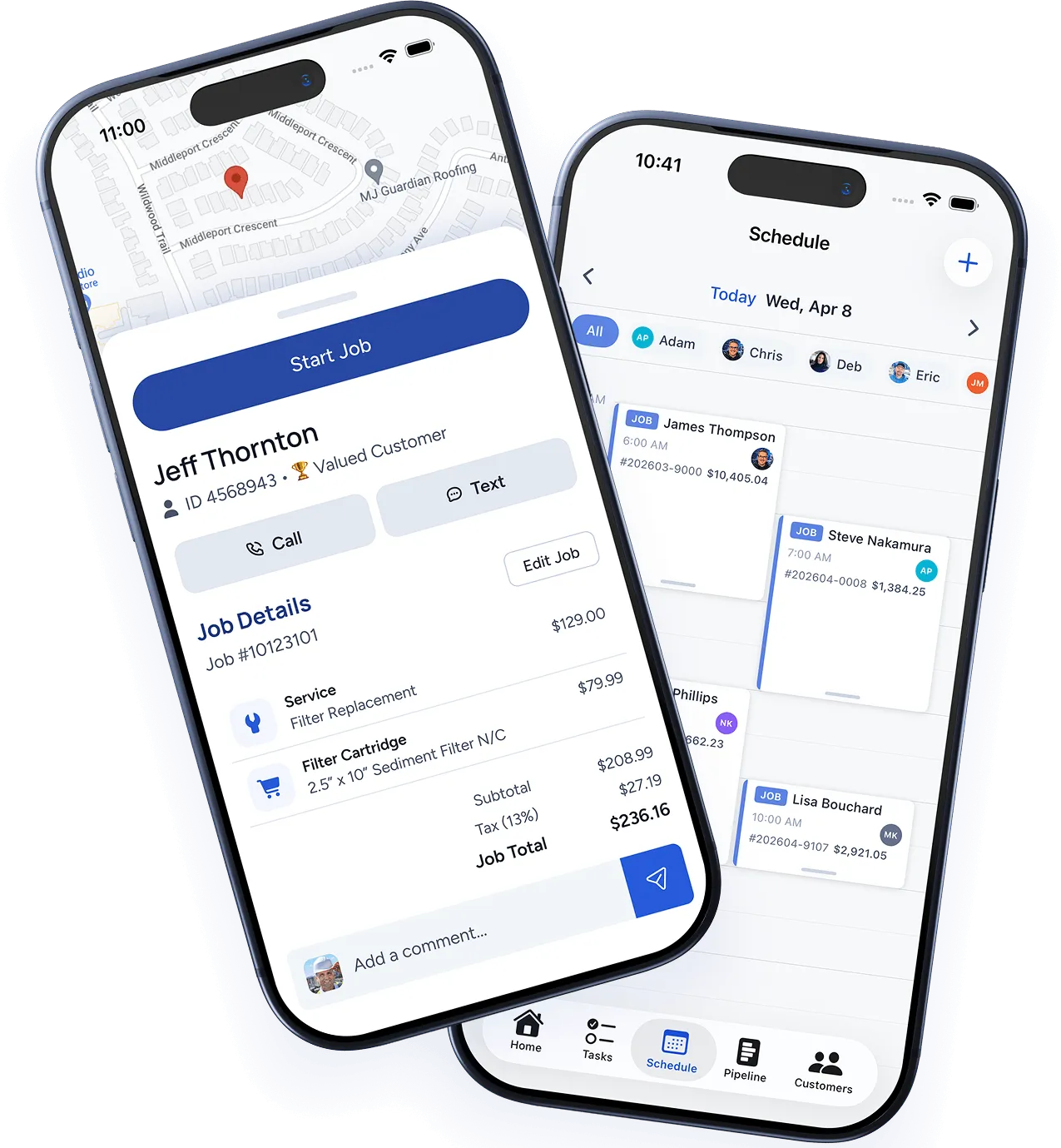
Each customer has a dedicated profile page showing:
- Contact information — All phone numbers, emails, and addresses.
- Job history — Every job completed for this customer, with status, dates, and amounts.
- Estimates — All estimates sent, with approval status.
- Invoices — All invoices and their payment status.
- Notes — A running log of notes from you and your team.
- Photos — All photos from jobs at this customer’s property.
Multiple properties
Many customers have more than one property (rental properties, commercial clients, etc.). You can add multiple service addresses to a single customer record. When creating a job, choose which property the work is for.
Tags and custom fields
Organize your customers with:
- Tags — Add tags like “VIP”, “Referral Source”, “Commercial”, or “Quarterly Service” to segment and filter your customer list.
- Custom fields — Create fields specific to your business (e.g., “Gate Code”, “Equipment Model”, “Preferred Technician”).
Searching and filtering
The customer list supports:
- Search — Find customers by name, email, phone, or address.
- Filters — Filter by tags, last service date, outstanding balance, or location.
- Sort — Sort by name, most recent activity, or total revenue.
Was this article helpful?
Thanks for your feedback!