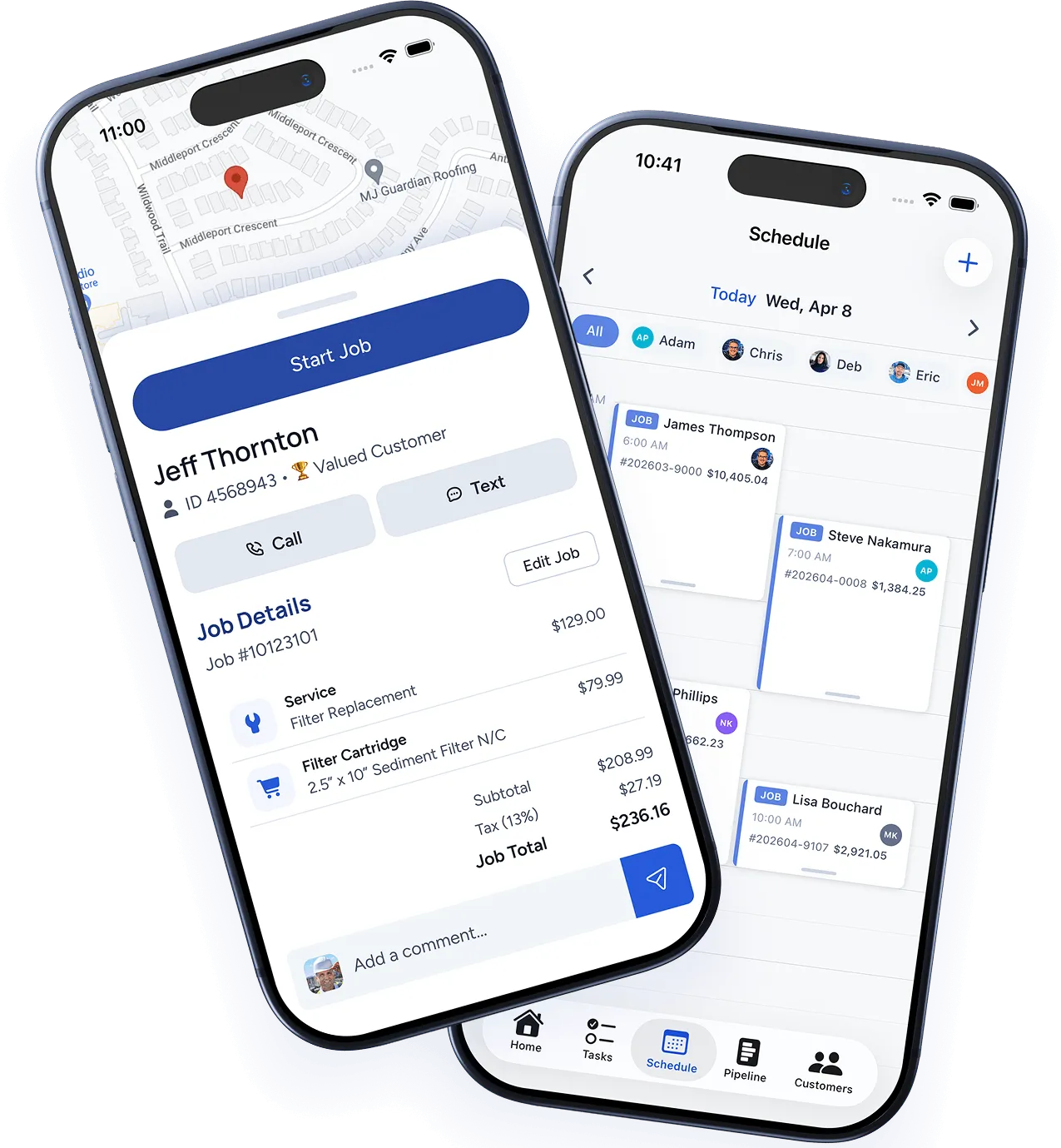
Invite a team member
- Go to Settings → Team.
- Click Invite Member.
- Enter their name and email address.
- Choose a role (see below).
- Click Send Invite.
They’ll receive an email with a link to create their password and download the mobile app.
Team member roles
WorkBoss has three built-in roles:
Admin
Full access to everything — settings, billing, reports, and all customer and job data. Best for business owners and office managers.
Dispatcher
Can create and manage jobs, assign technicians, view the schedule, and access customer records. Cannot modify billing or account settings.
Technician
Access to their assigned jobs, ability to update job status, log time, capture photos, and collect signatures. View-only access to customer contact info for their assigned work.
Managing your team
From the Team page you can:
- Edit roles — Click a team member’s name to change their role at any time.
- Deactivate members — If someone leaves, deactivate their account instead of deleting it. This preserves their job history while revoking access.
- Resend invites — If someone didn’t get the email, click the three-dot menu next to their name and choose Resend Invite.
Tips
- Start by adding your office staff as Admins or Dispatchers so they can help set up the system.
- Technicians only need the mobile app — they don’t need to log into the web dashboard.
- There’s no limit on team members for any WorkBoss plan.
Was this article helpful?
Thanks for your feedback!