Built-in roles
WorkBoss includes three roles that cover most team structures:
Admin
Full access to the entire platform. Admins can:
- Manage all jobs, estimates, invoices, and customers
- Access reports and analytics
- Modify account settings and billing
- Invite and manage team members
- Configure integrations
Best for: Business owners, operations managers, office managers.
Dispatcher
Can manage day-to-day operations without access to sensitive settings. Dispatchers can:
- Create and manage jobs and estimates
- Assign technicians and manage the schedule
- View and edit customer records
- Create and send invoices
- View basic reports
Cannot: Change account settings, manage billing, invite/remove team members, or access financial reports.
Best for: Office coordinators, schedulers, senior staff.
Technician
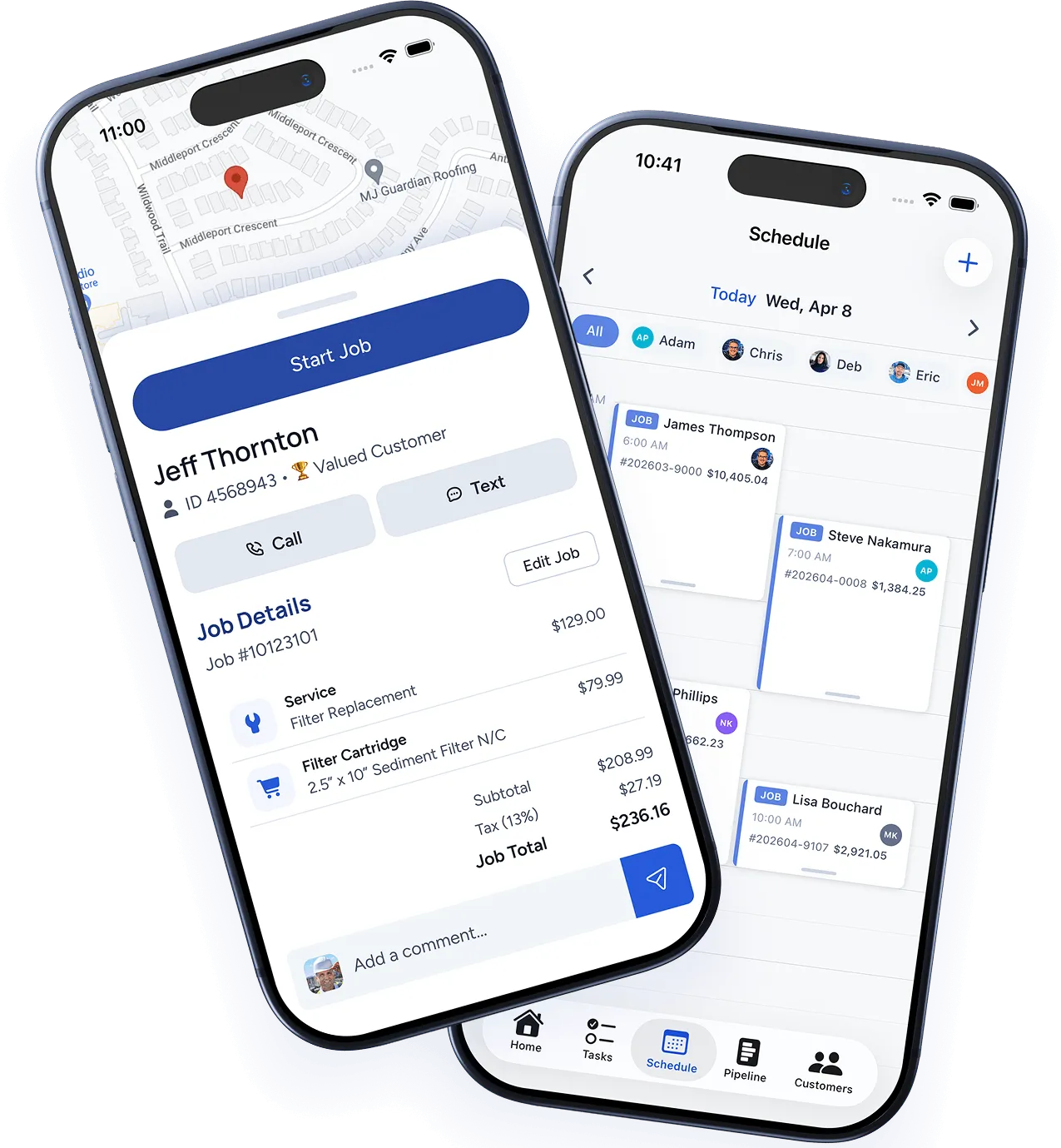
Focused mobile access for field work. Technicians can:
- View their assigned jobs and schedule
- Update job status, add notes, and take photos
- Collect customer signatures
- View customer contact info for assigned jobs
- Clock in and out
Cannot: Create jobs or estimates, access other technicians’ schedules, view financial data, or modify any settings.
Best for: Field technicians, apprentices, subcontractors.
Changing roles
- Go to Settings → Team.
- Click on the team member’s name.
- Select a new role from the Role dropdown.
- Click Save.
The change takes effect immediately. The team member may need to refresh their app or browser to see updated permissions.
Custom permissions
Need something between the built-in roles? Contact us at [email protected] — custom role configuration is available on DispatchBoss and RetailBoss plans.
Was this article helpful?
Thanks for your feedback!