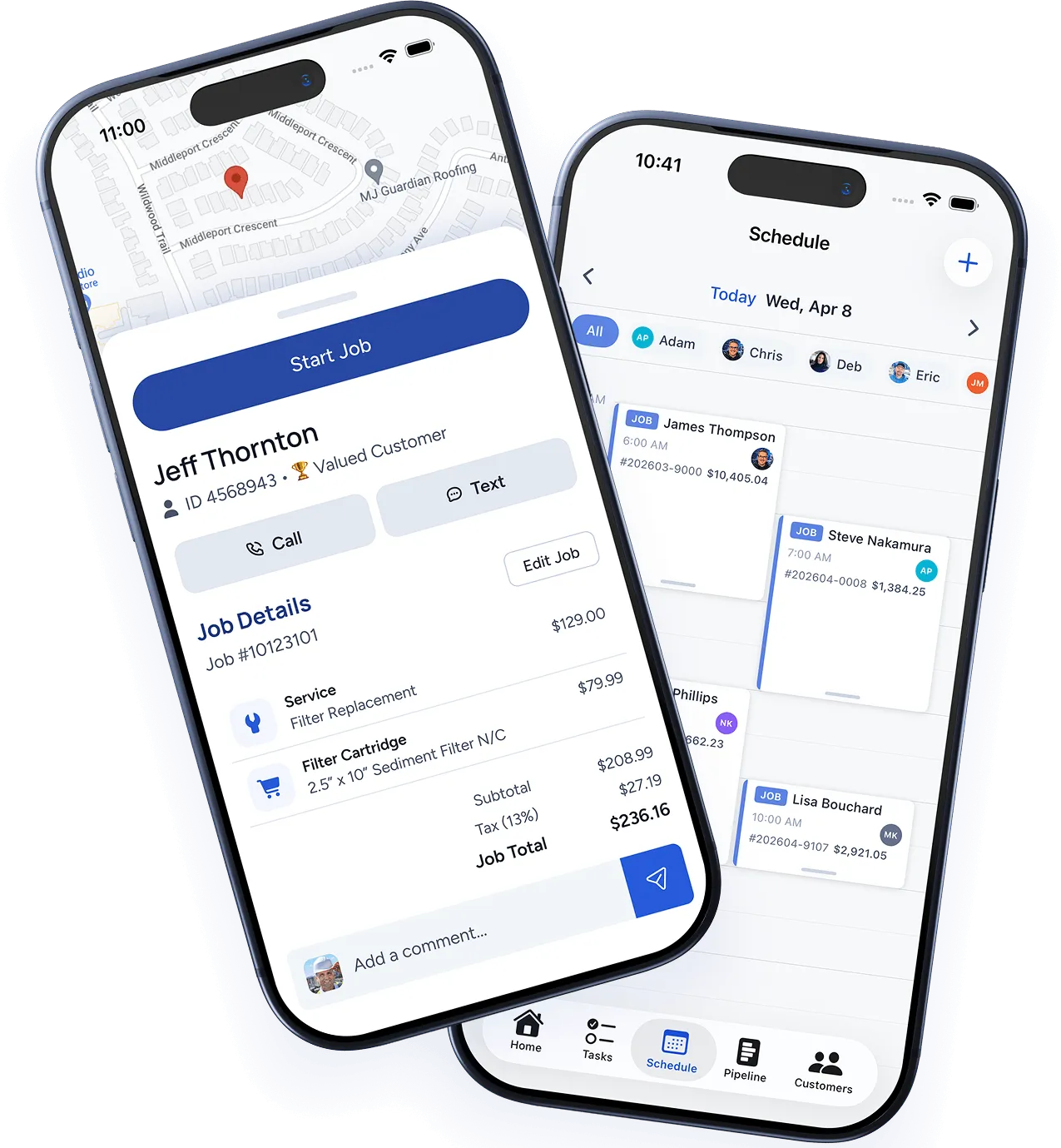
Create a new job
- Click the + New Job button from the dashboard or the Jobs page.
- Select a customer — Search by name, phone, or address. If this is a new customer, click Add New to create their record on the spot.
- Service address — Defaults to the customer’s address on file. Change it if the job is at a different location.
- Job type — Select from your service catalog or type a custom description.
- Priority — Normal, High, or Emergency. High and Emergency jobs are flagged in the schedule view.
Add job details
- Description — Add notes about the work needed. Technicians see this on their mobile app.
- Line items — Add services and materials with quantities and rates. These can be pulled from your service catalog.
- Attachments — Upload photos, diagrams, or documents related to the job.
- Internal notes — Notes visible only to office staff, not the customer or technician.
Assign and schedule
- Assign a technician — Select one or more team members from the dropdown.
- Set a date and time — Choose when the job should be done. You can set a specific time or a time window (e.g., “Morning” or “Afternoon”).
- Estimated duration — Helps with scheduling and prevents overbooking.
Click Create Job to save. The assigned technician will receive a notification immediately.
Track the job
Jobs move through these statuses:
- Scheduled — Created and assigned, waiting for the service date.
- En Route — Technician has started traveling to the job site.
- In Progress — Work has begun.
- Completed — Job is done, ready for invoicing.
- Invoiced — An invoice has been sent to the customer.
You can view all jobs by status on the Jobs page, or see them on the calendar in the Schedule view.
Was this article helpful?
Thanks for your feedback!