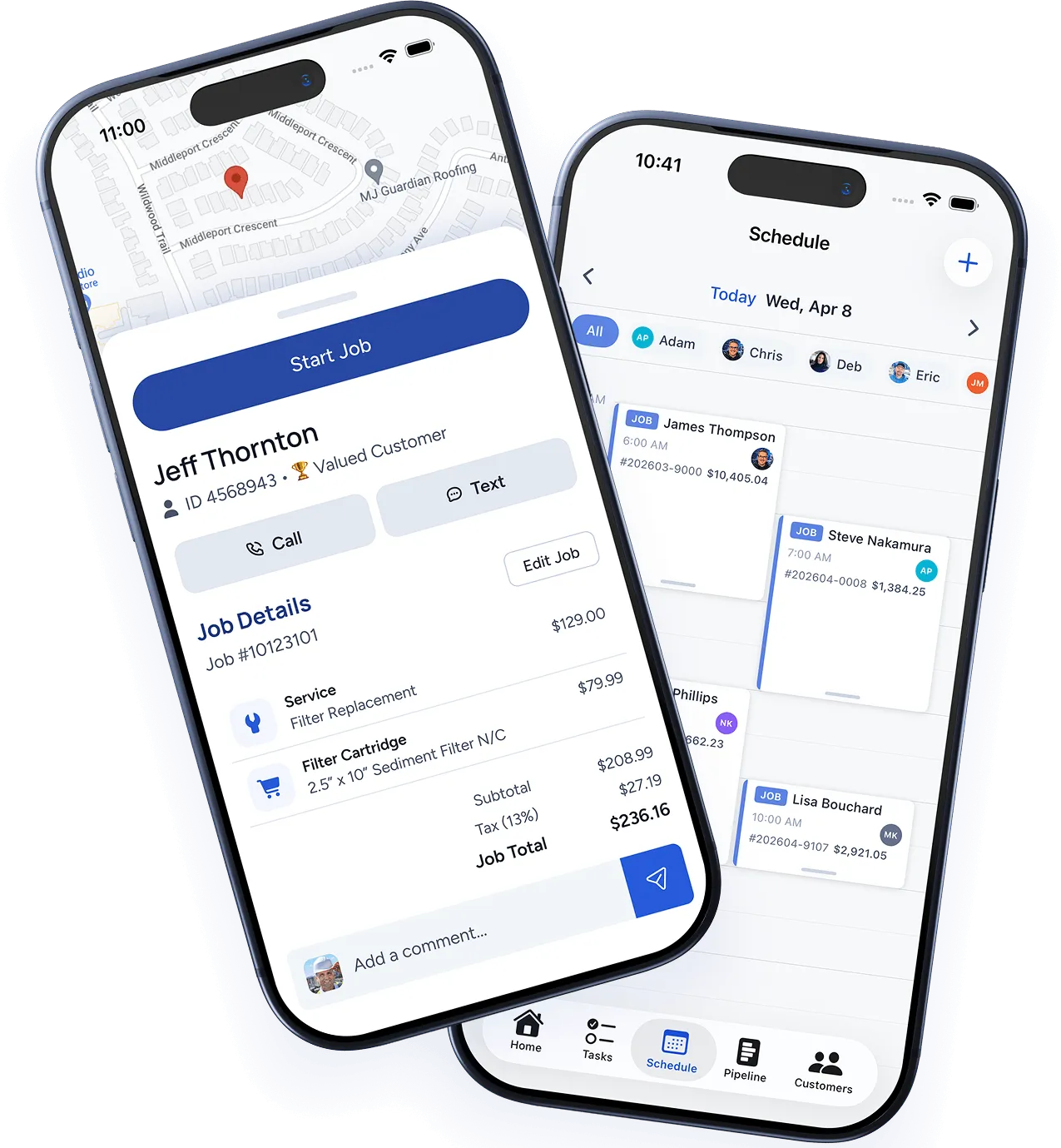
The schedule view
The Schedule page gives you two views:
Calendar view
A day, week, or month calendar showing all scheduled jobs. Each job card shows the customer name, service type, time window, and assigned technician. Jobs are color-coded by status.
Dispatch board
A Kanban-style board organized by technician. Each column shows one team member’s jobs for the day, making it easy to see who’s available and balance workloads.
Scheduling a job
There are three ways to schedule:
- From the job creation screen — Set the date and time when creating a new job.
- Drag and drop — In the calendar or dispatch board, drag an unscheduled job onto a time slot or technician column.
- Quick assign — Click any empty time slot in the calendar, select a customer and service, and the job is created and scheduled in one step.
Managing the schedule
- Reschedule — Drag a job to a new time or date. The technician is notified automatically.
- Reassign — Drag a job from one technician’s column to another in the dispatch board.
- Recurring jobs — When creating a job, toggle Recurring and set the frequency (weekly, bi-weekly, monthly, or custom). WorkBoss will automatically create future jobs on schedule.
Dispatch notifications
When a job is assigned or rescheduled, the technician receives:
- A push notification on their mobile app
- An in-app notification with job details and directions
- An optional SMS or email (configurable in Settings → Notifications)
Schedule conflicts
If you try to schedule a job during a time when the technician already has work, WorkBoss will show a warning. You can override it if the jobs are in the same area or if the first job will be done in time.
Was this article helpful?
Thanks for your feedback!