Job lifecycle
Every job in WorkBoss follows a clear path from start to finish:
1. Draft
The job has been created but not yet scheduled or assigned. Use this status for work that needs to be quoted first or is waiting on customer confirmation.
2. Scheduled
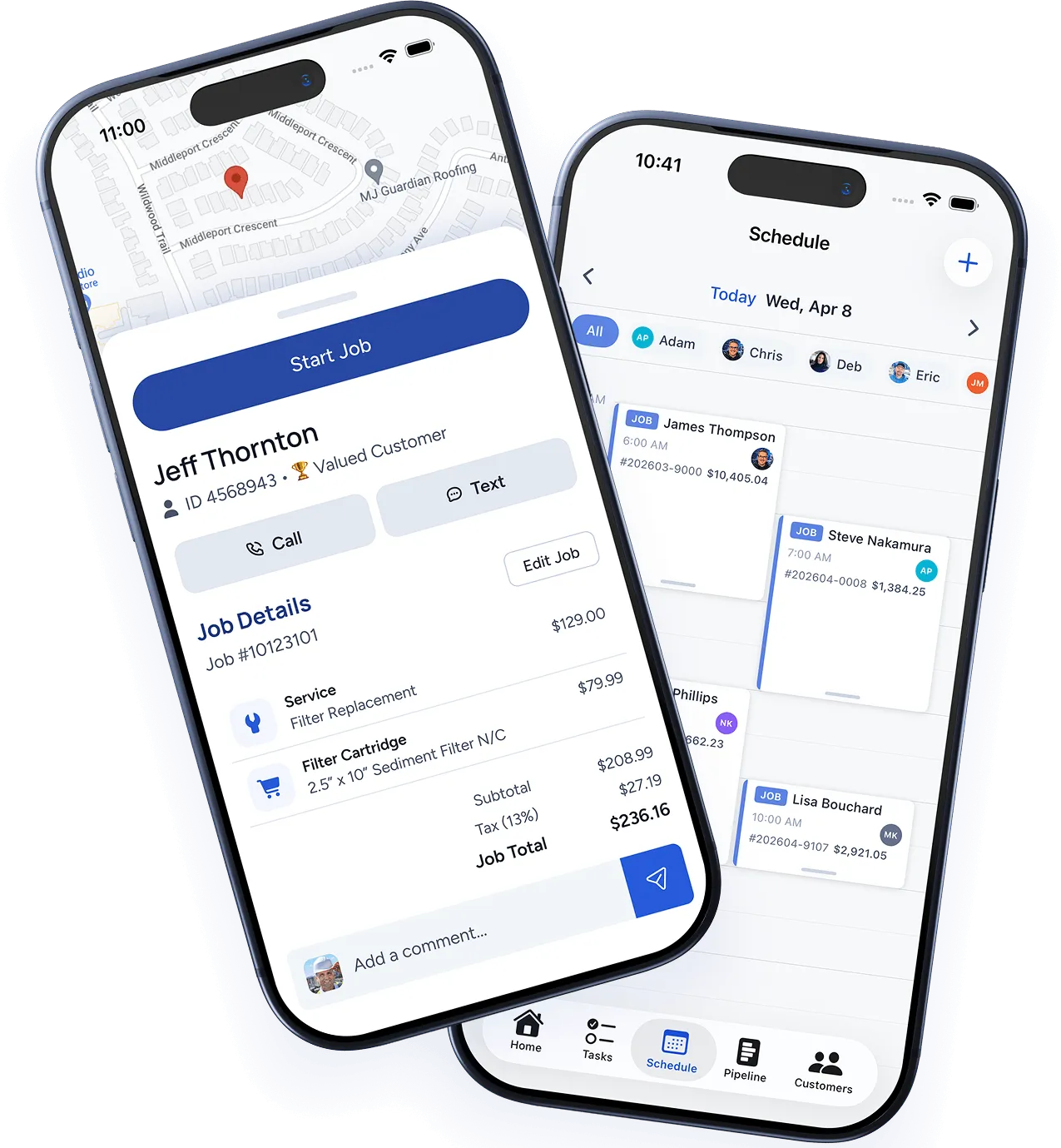
The job has a date, time, and assigned technician. It appears on the calendar and the technician’s mobile app. The customer can be notified via email or SMS.
3. En Route
The technician has started traveling to the job site. This status update can be triggered manually by the technician from the mobile app, or automatically when they start navigation.
4. In Progress
Work has begun at the job site. Technicians can log time, add notes, take photos, and record materials used from the mobile app.
5. Completed
The job is finished. The technician can capture a customer signature and mark the job complete from the field. The office team is notified and the job is ready for invoicing.
6. Invoiced
An invoice has been generated from the job. This can happen automatically (see Settings → Automation) or manually by an office team member.
7. Paid
Payment has been received. If using WorkBoss Payments, this updates automatically. Otherwise, you can mark it paid manually.
Automating status changes
Go to Settings → Automation to configure:
- Auto-create invoices when a job is marked complete.
- Auto-send invoices via email immediately or on a schedule.
- Auto-follow-up on unpaid invoices after a set number of days.
Filtering and reporting
Use the Jobs page filters to view jobs by status, date range, technician, or customer. Export any filtered view to CSV for reporting.
Was this article helpful?
Thanks for your feedback!